 MiniMuse Tools
Backgrounds & transparency
Remove white or near-solid backgrounds, trim empty space and check edges on light and dark backdrops. For a complex scene, outline the subject with a lasso or mask brush.
Learn background cleanup →MINIMUSE IMAGE EDITOR · LOCAL & FREE
Upload your MiniMuse character image or custom asset. Clean up a background, recolor clothes and accessories, or combine separate PNGs into a new look. Download one edited piece or the complete picture.
Images stay on your device. No account needed.
Only need resizing or transparent padding? Quick Edit →UPLOAD. REFINE. DOWNLOAD.
A white box around an accessory, a rough outline or a color that clashes with your outfit: start with that one problem. Keep the original image intact while you edit.
Try the comparison slider and change the preview background. In Asset Studio, you can apply these checks to your own image and use a brush wherever automatic cleanup needs help.
Edit your own image →Illustrated cleanup example using an original ribbon. This preview does not process your files.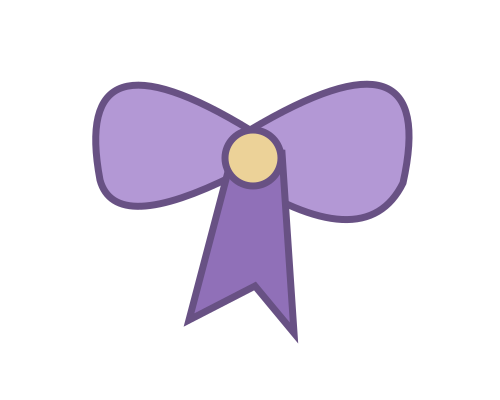
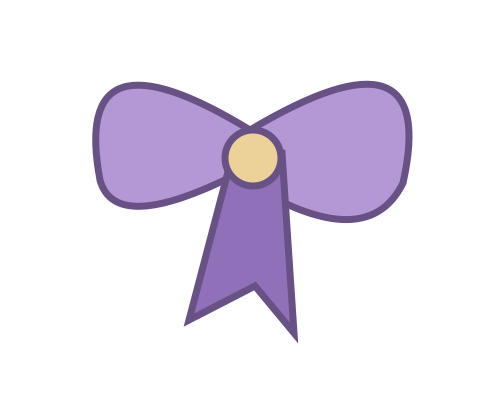 BeforeAfter
START WITH THE IMAGE YOU ALREADY HAVE
Focus on one detail or build a complete composition. Every part can be downloaded independently.
Remove white or near-solid backgrounds, trim empty space and check edges on light and dark backdrops. For a complex scene, outline the subject with a lasso or mask brush.
Learn background cleanup →
Select a shirt, skirt or another region before adjusting hue, saturation and brightness. Add your own clothing PNG as a separate layer when you want a different shape.
Learn clothing edits →
Recolor a selected hair region, add an accessory PNG and adjust its position, size and rotation. Control what sits in front or behind with the layer list.
Learn hair and accessory edits →A screenshot is one flat image: use manual selections for local edits. Adding a new PNG does not automatically remove the old outfit or reconstruct hidden details. The examples above illustrate editing tasks; the game images below show MiniMuse itself.
INSIDE THE MINIMUSE APP
A look at character customization and Studio scenes in MiniMuse.
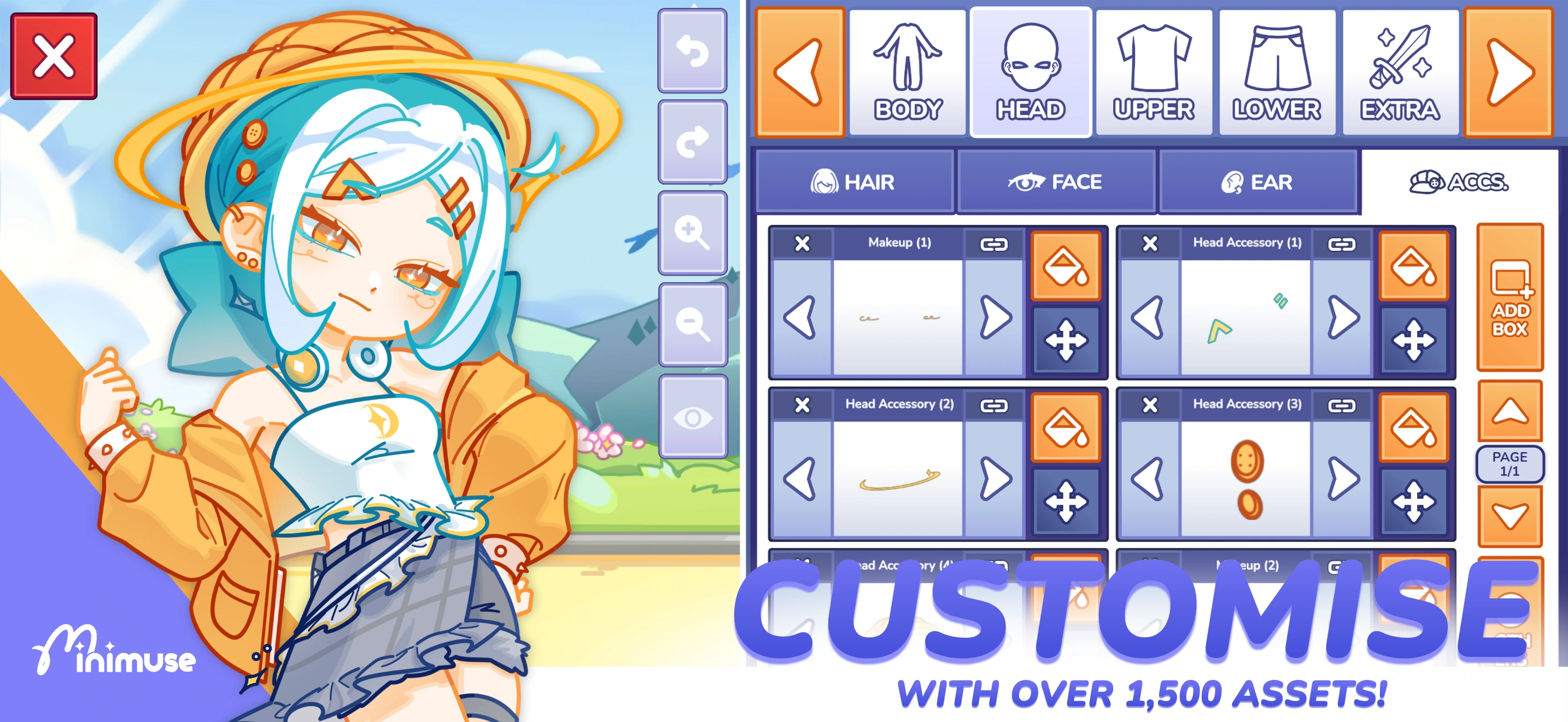
Explore the character editor before preparing your own artwork for import.
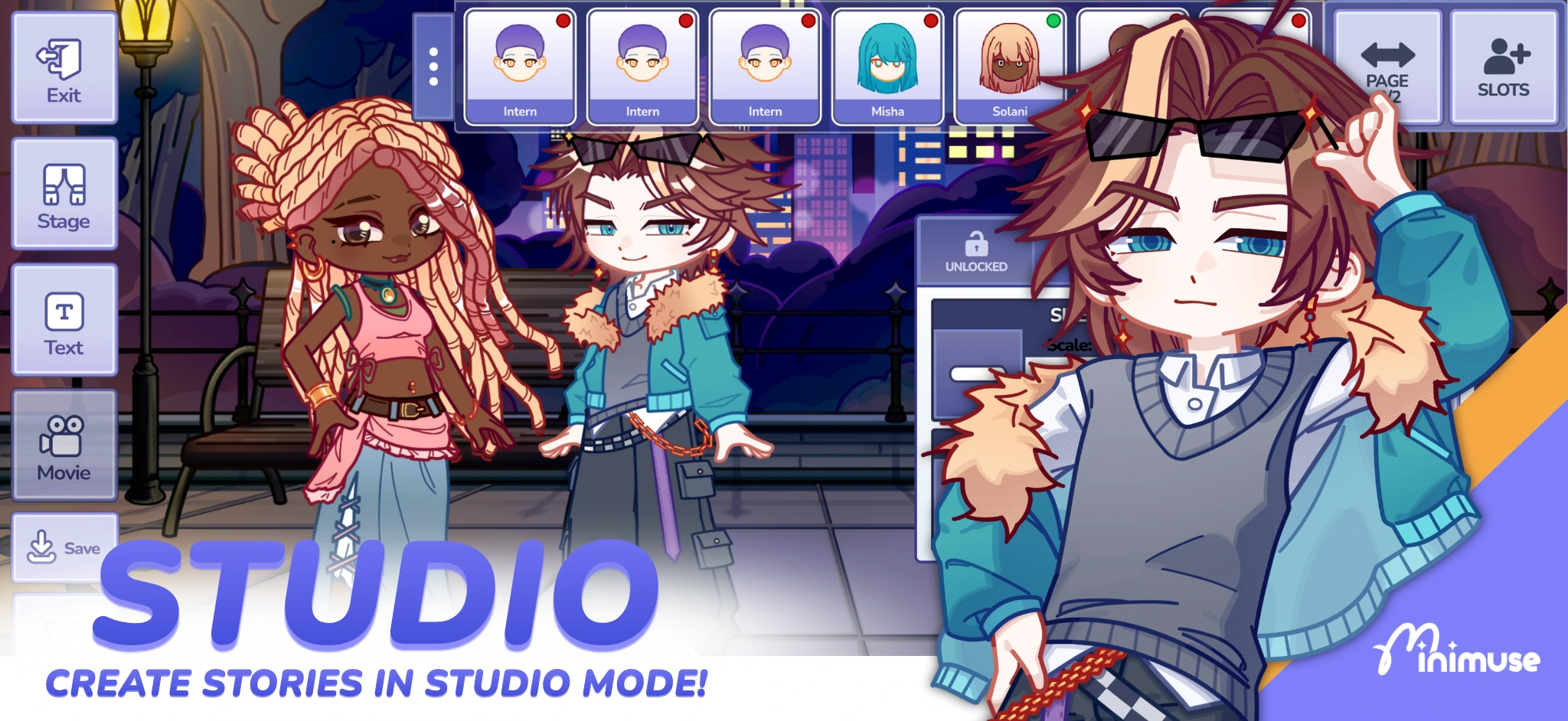
Arrange characters and scenery in Studio to give your ideas a setting.
MiniMuse imagery © Studio Sirenia. Shown for reference; MiniMuse Tools is an independent resource.
FROM A SINGLE EDIT TO A COMPLETE SCENE
Prepare a custom background, adjust the colors of your OC artwork, or layer a new accessory over a character reference. Preview your changes together, then export a full PNG or JPG to keep the finished image.
For MiniMuse custom assets, export separate PNGs and check their placement inside the game. A complete picture remains a flat image; it does not become an editable in-game character.
Start with your image →AN EXTRA WAY TO GET STARTED
Creation is also available: browse the small starter library, arrange original pieces and add your own artwork whenever you are ready.
Browse available assets →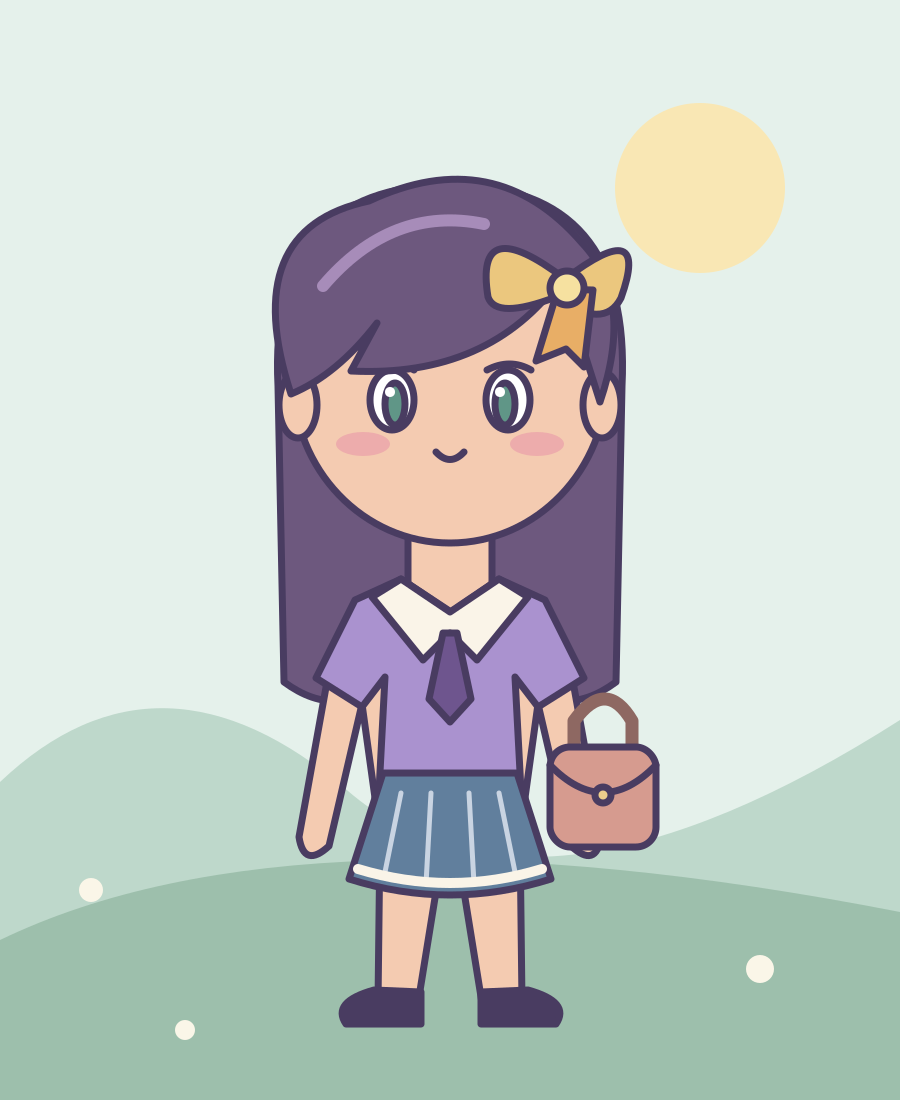
FROM FIRST PIECE TO FINISHED PICTURE
Clean a background or outline a region. The original image stays intact.
Move, scale and arrange pieces. Compare the complete result as you go.
Save palettes and color variants. Download individual assets or a ZIP.
Choose device autosave or download an editable backup. No cloud required.
DOWNLOAD AT ANY POINT
A repaired accessory is already a finished task. Download just that piece, your full composition, or a ZIP of included assets. Nothing requires you to complete an entire outfit first.
Open Asset Studio →Transparent artwork, ready for your next step.
Your chosen layers composed into one picture.
Separate assets for import, or an editable backup for later.
WATCH & EXPLORE
Watch these MiniMuse videos, then bring your own ideas into Asset Studio.
Thumbnails load from YouTube. Playing a video connects to YouTube’s embedded player; its privacy policy applies. Your project images stay on your device.
A LITTLE HELP WHEN YOU NEED IT
Explore a sewing game, plan a dress and find a practical beginner guide.
Play & read guide →CREATOR GUIDETake separate PNGs into MiniMuse and check placement.
Read guide →CREATOR GUIDEArrange hair, clothes and props from back to front.
Read guide →CREATOR GUIDERemove a solid color, then refine the outline by hand.
Read guide →CREATOR GUIDEMake different pieces feel like one outfit.
Read guide →CONTINUE IN THE OFFICIAL APP
Extract your asset ZIP, then import each PNG separately. Recheck scale and position inside the app. Download MiniMuse Official →
GOOD TO KNOW
Open Upload & edit, select your image and use a lasso, magic wand or mask brush to isolate an area. Adjust its color or combine it with your own PNG layers, then download the result. Use images you are permitted to edit.
Solid or near-solid backgrounds can be removed with color tolerance controls. Complex backgrounds need manual outline and brush refinement; there is no automatic AI character cutout.
Yes. Try Willow or choose from the available original CC0 starter pieces. The library is small, and you can add your own PNG, JPEG or WebP at any time.
Yes. Use Upload & edit for background cleanup, edge repair, manual selections and local color changes. Download a single PNG without finishing a character or saving a project.
No. Use a manual selection for local color edits, or add a separate clothing PNG and position it yourself. The editor cannot reconstruct hidden body or hair pixels.
These are not official game formats. Extract the asset ZIP and import individual PNGs in the app. Open .mmstudio project backups here to continue editing.
No. MiniMuse Tools is an independent art workspace, not operated or endorsed by Studio Sirenia. Use the official links to get the game.